

Read this bit if you read nothing else
Nothing here is required for the update to happen. The update is applied on your scheduled date whether or not you have done any of it. Every workspace has a scheduled date, most of them in October; we tell you yours directly and ahead of time, so there is nothing to request. These twelve steps are how you make the week after the update the best week your program has had: your people sign in at the same address, find a workspace that is already theirs, and get a program email, a fresh leaderboard season and a Slack channel that are ready because you set them up first. Steps 1 to 3 are checks. Steps 4 to 11 are setup. Step 12 is the announcement, written for you.
00In the order they pay off
The twelve steps
Two places to know. The left rail under Manage holds Users, Leadership, Segments, Communications and Reporting. The gear icon at the top right opens Settings, where everything else in this guide lives. Each step links to a fuller help center article; the help center opens already signed in from the Help icon inside your workspace.
015 minutes
Sign in and look around
Your address is the same address your people use today. Your admin access is already there; nothing to install, nothing to request.
- Go to your workspace address in a browser and sign in the way you always have.
- Open Users under Manage in the left rail. Everyone on your roster is listed with department, location, status and role. People who have not signed in yet show a pre-loaded status; that is expected before your scheduled date.
- Check who is an admin. v3 has two workspace roles, Admin and User; moderators are set per topic (step 3). Anyone who was an admin before is an admin now. To add one, open the person's row, choose Edit, and set Role to Admin.
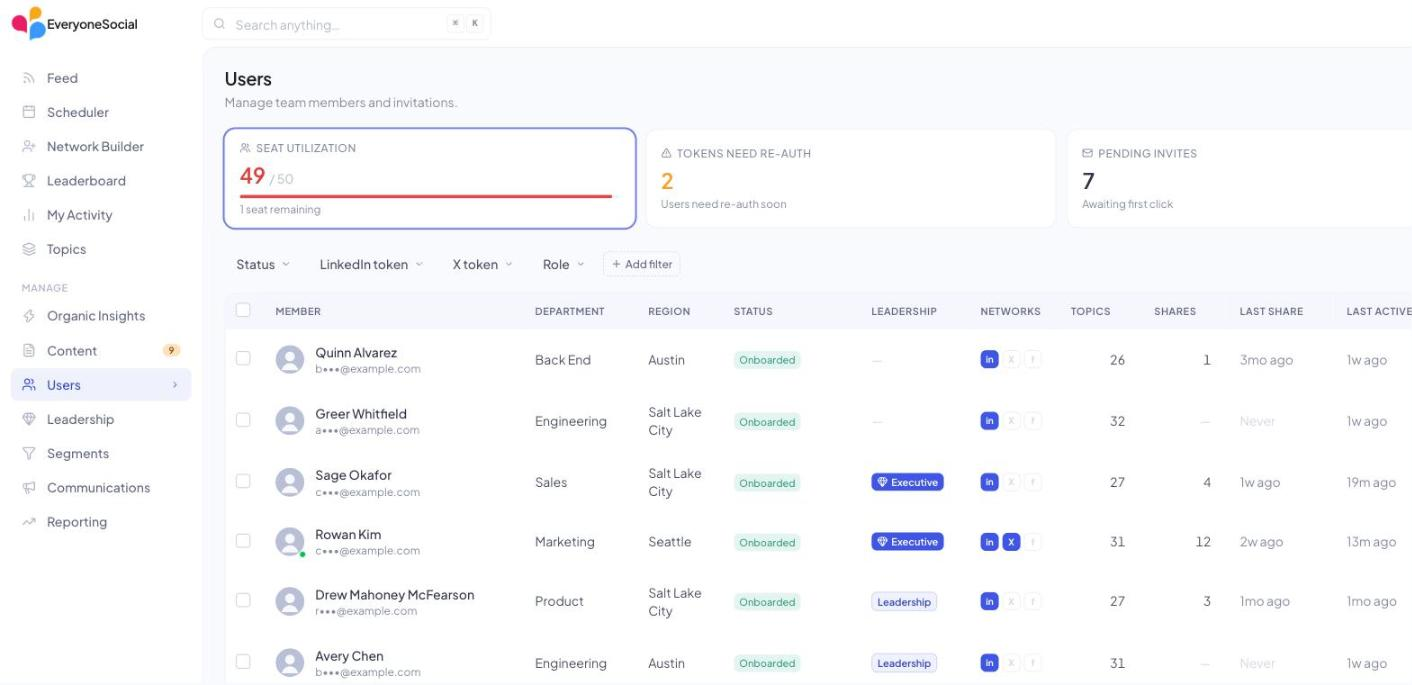
Managing users, seats and token healthDepartments, locations and roles
0210 minutes
Check your departments and locations
Departments and locations are how v3 decides who sees what: topic audiences, collections, campaigns, leaderboards and scorecards all key off them. Your names are already there. Grouping them under a parent is what unlocks audiences by division or region.
- Open Settings (the gear, top right), then Departments under People. Every department name from your program is listed. If your workspace uses its own words (Regions, Markets, Teams), those are the labels you see.
- Add children under a top-level department with Add on its row, or use Move to on an existing one, so Field Sales sits under Sales. Two levels, parent and child, is the whole model, and it is enough for almost every program.
- Rename anything that has drifted with Rename. People keep their assignment.
- Repeat under Locations: regions above countries, or countries above cities, whichever your audiences need.
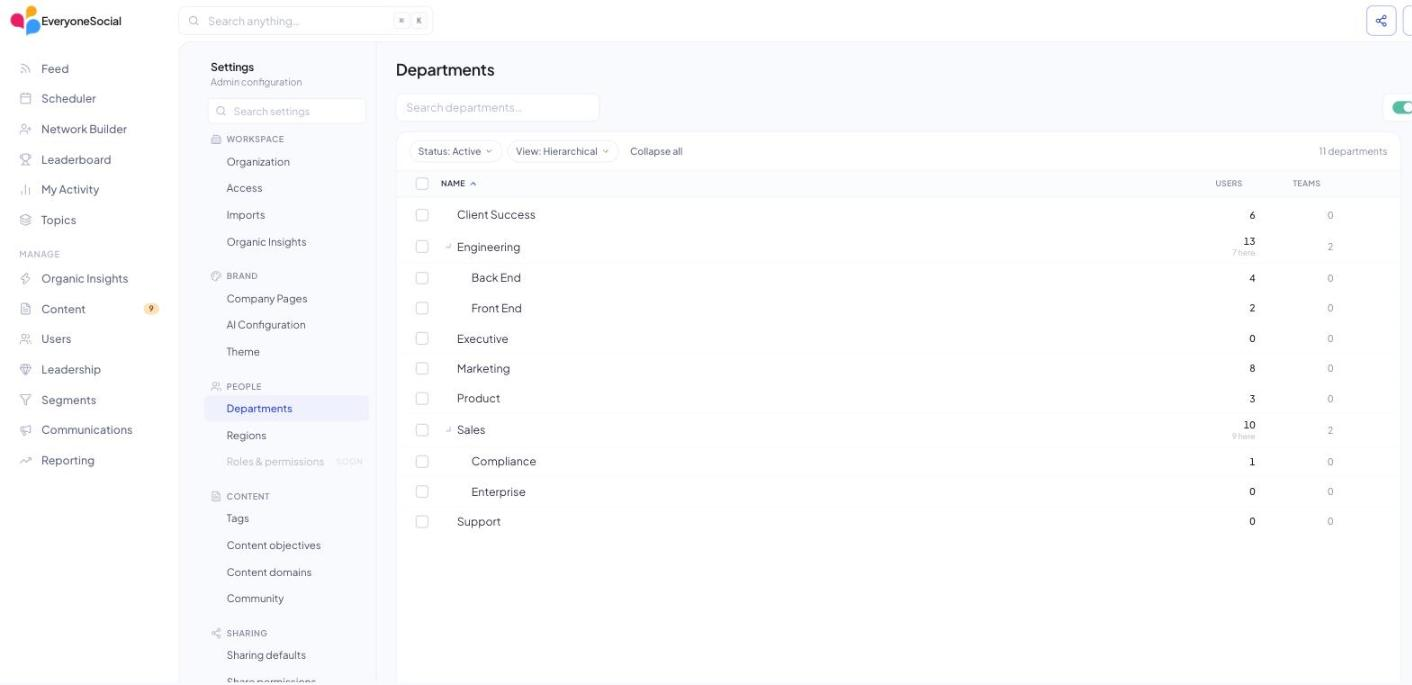
Departments, locations and roles
0310 minutes
Check your topics and who sees them
Each of your groups is a topic in v3 with the same name, the same moderators and the same moderation setting. The one thing worth eyeballing is the audience: which departments, locations or segments each topic reaches, and how strongly.
- Open Topics in the left rail and switch to the Manage view. Every topic is listed with its moderation setting and activity.
- Open a topic. Under Visibility, the Audiences row shows who it reaches. Each audience is Required (everyone in it follows the topic), Suggested (it is offered to them) or Discoverable (they can find it). Click a chip to change the tier; Add audience adds a department, location or segment.
- Under Settings, confirm Moderation (on: submitted posts wait for approval; off: posts go live) and the Moderators list. Both came across; adjust if someone has changed roles.
- Archive any topic your program no longer uses from the topic's menu. Archiving hides it from the feed and keeps its history.
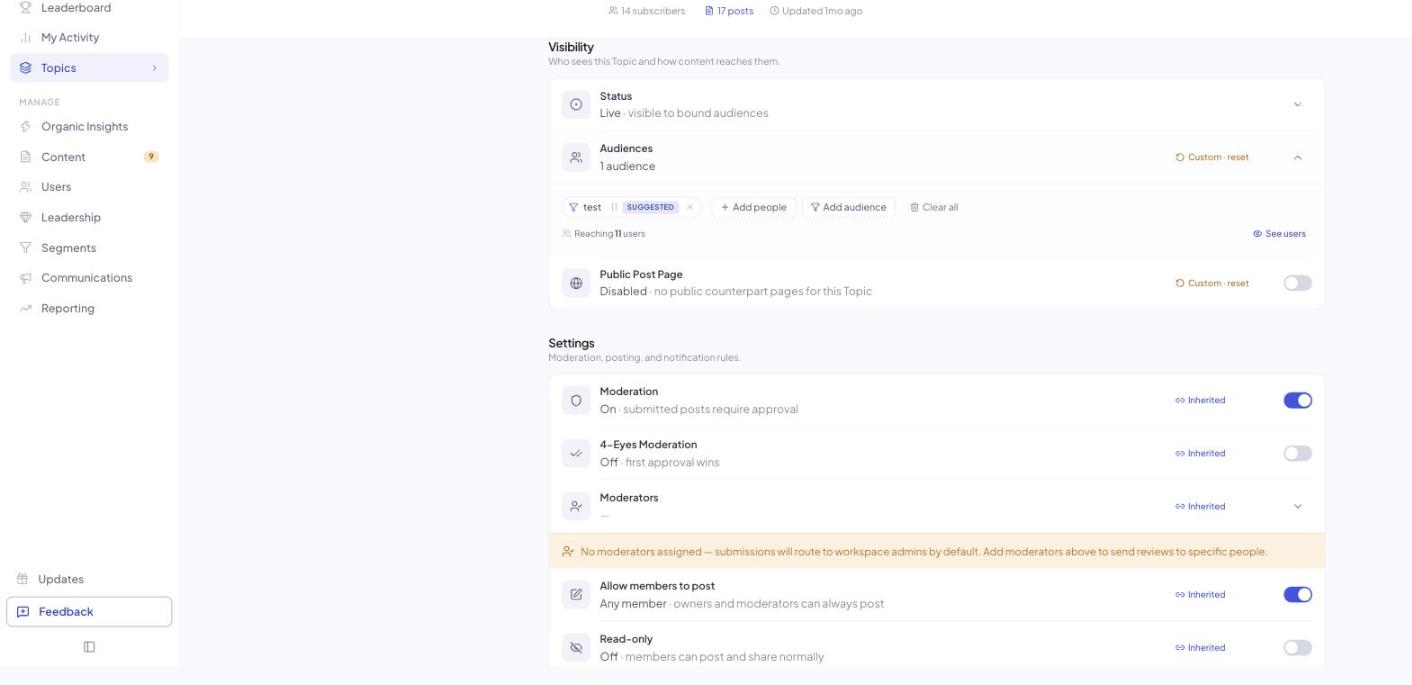
Topic audiences, moderators and posting rulesBulk editing topics
045 minutes
Build your first Collection
Collections are new in v3: a group of topics that share one audience template and one set of rules, so you set things once instead of topic by topic. Build one company-wide collection first, so every new hire lands with the right topics on day one, then one per major audience.
- In Topics › Manage, open the Collections tab and choose New collection. Name it for the audience, for example Company & Leadership.
- Add the topics everyone should follow: company news, culture, your flagship product topic.
- Set the Topic audience template to All users. Anyone who joins later is reached automatically.
- Use Apply to all to push the template to every topic in the collection. Next, one collection per division or region, built on the parents you set in step 2.
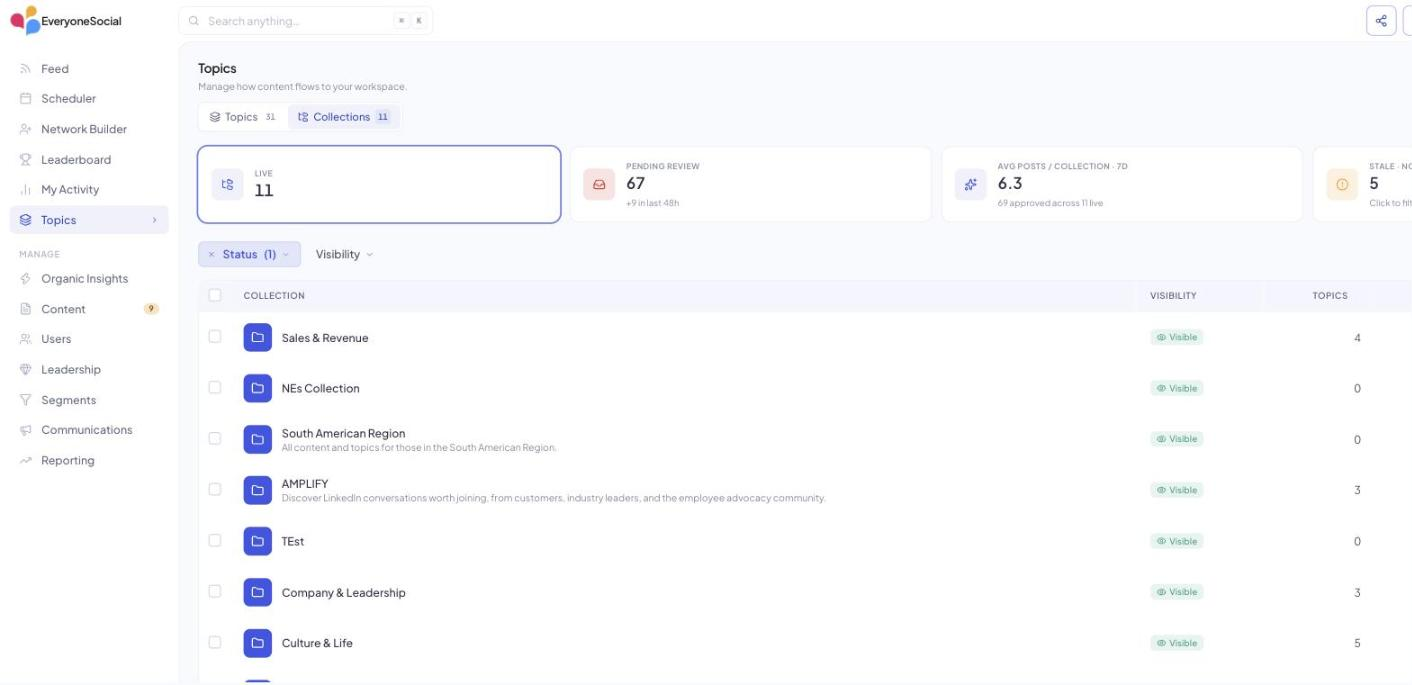
Topics and collections: how the library is organizedManaging a collection
0510 minutes
Set up Campaigns: your program emails
Program emails live in Communications › Campaigns in v3. A campaign picks an audience, the content to feature and a cadence, and sends on your schedule. Build the welcome campaign now so it goes out the week of your update, then a weekly one so the program has a heartbeat from week one.
- Open Communications under Manage and choose New campaign. The wizard has three steps: Basics & Audience, Content, Schedule.
- Audience: All active users, or pick departments, locations, segments or people. Content: the topics or posts to feature. Schedule: One-time for the welcome, set for the first weekday after your scheduled update date.
- Send yourself a test from the campaign page, then schedule it.
- Create a second campaign with a Weekly cadence (Daily, Every two weeks and Monthly are also there). On the Settings tab, set the From name and reply-to your people will recognise.
Why this is step 5 and not step 12
Campaigns reach people who have signed in, so your welcome campaign grows its own audience through update week, when curiosity is highest. A program email in the inbox that week turns curiosity into shares. Build it now and it is waiting.
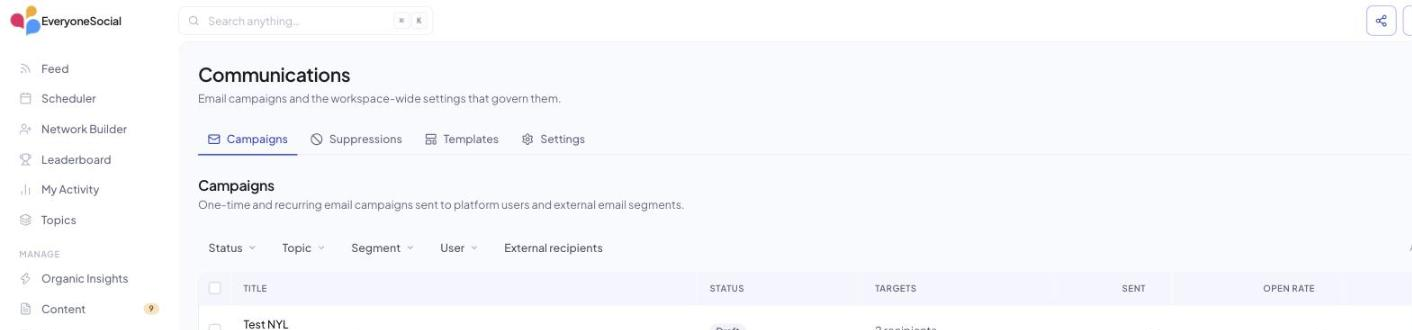
Communications: campaigns, templates and suppressionsThe campaign page: testing, scheduling and results
065 minutes
Set your leaderboard season
Your leaderboards come across with their rules and audiences, and start a fresh season at v3 point values. A fresh season is the best re-engagement moment a program gets: everyone starts level, and the first week decides the early leaders.
- Open Leaderboard in the left rail and click Manage. Every board is listed with its audience, participants and duration.
- Open your main board and choose Edit leaderboard. Set the Duration to the season you want to announce: This quarter, This year, a rolling window, or a Custom range.
- Check the Point preset. The 2026 default scores a LinkedIn share of your branded content at 50 points and other content at 30; the Scoring tab lets you set your own values per action.
- Decide the prizes and write two lines for your announcement in step 12: the season dates and what the top three win.
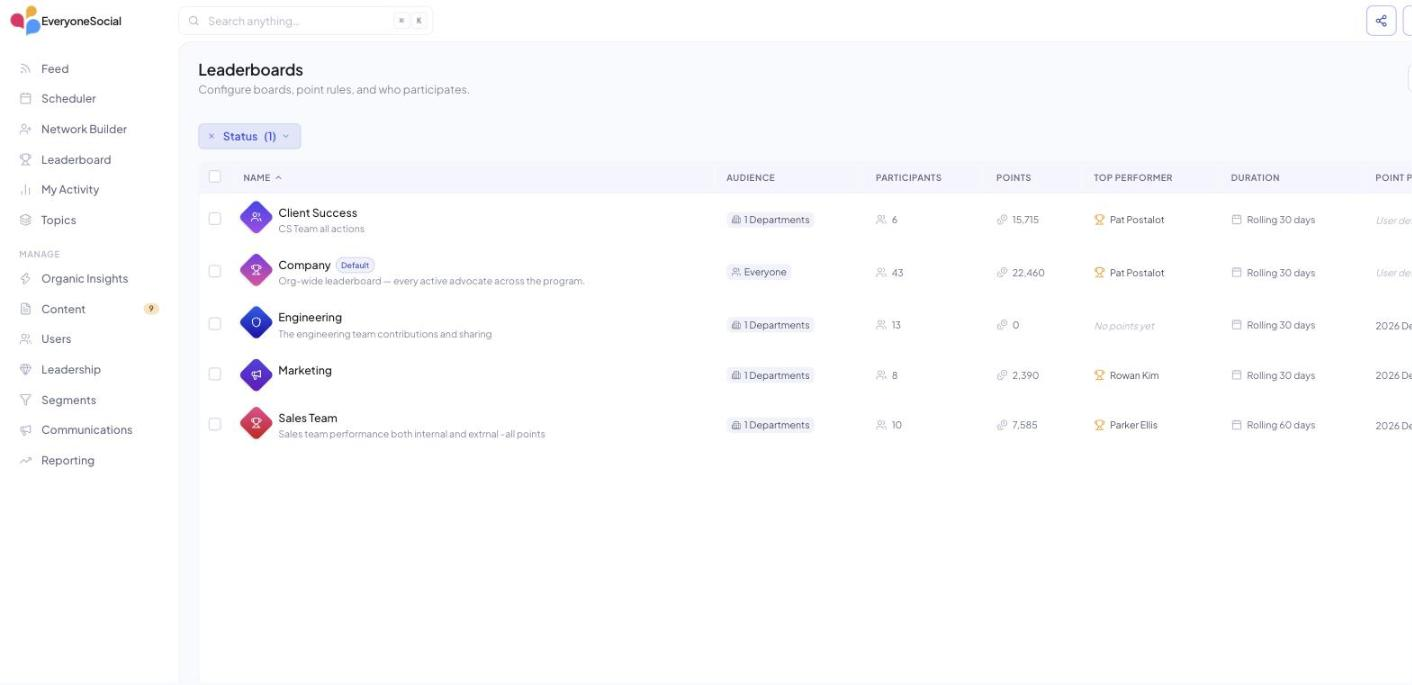
Leaderboards: creating and scoring a board
073 minutes
Connect Slack
Slack connects to v3 with one Add to Slack click. Do it before your scheduled date so posts flow into your channels from day one. Posting has its own switch, so connecting early changes nothing your people see.
- Open Settings, then Connected apps. On the Slack card, click Add to Slack. Slack asks you to confirm the workspace and approve the app. If your Slack requires admin approval for new apps, your Slack admin sees the request; the IT page covers what they will want to know.
- Back on the card, the switch turns posting on and off. Leave it off until your scheduled update date, then turn it on.
- From then on, anyone can send a post to a Slack channel from the post itself, and your program can post into the channels you choose.
Microsoft Teams or Google Chat
Running your program on Teams or Google Chat? Tell us, and we will follow up on your channels directly.
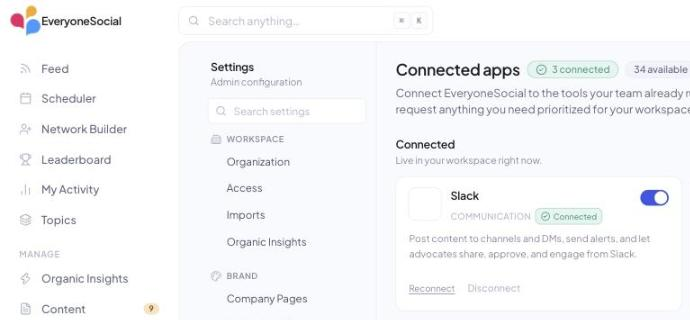
Slack integrationSlack: IT admin approval and permissions
085 minutes
Review sharing settings
Your sharing defaults, disclosures and link tracking came across with your program. This is a five-minute read-through so nothing surprises you on the day, plus one decision that is yours to make: who may compose brand-new posts for their own network.
- Sharing defaults: which networks are on and how each behaves (share, engage or both), the auto-scheduling window, and Auto-append UTM parameters.
- Share permissions: the default copy-edit mode (Free, Rephrase only or Locked), and Who can share to their own network: Everyone, or only members of the segments you choose. Regulated programs can also require moderator approval for those shares.
- Disclosures: your library and which ones are marked Required. They are as you had them.
- UTM tracking: the parameters stamped on every shared link, so your analytics team keeps its attribution.
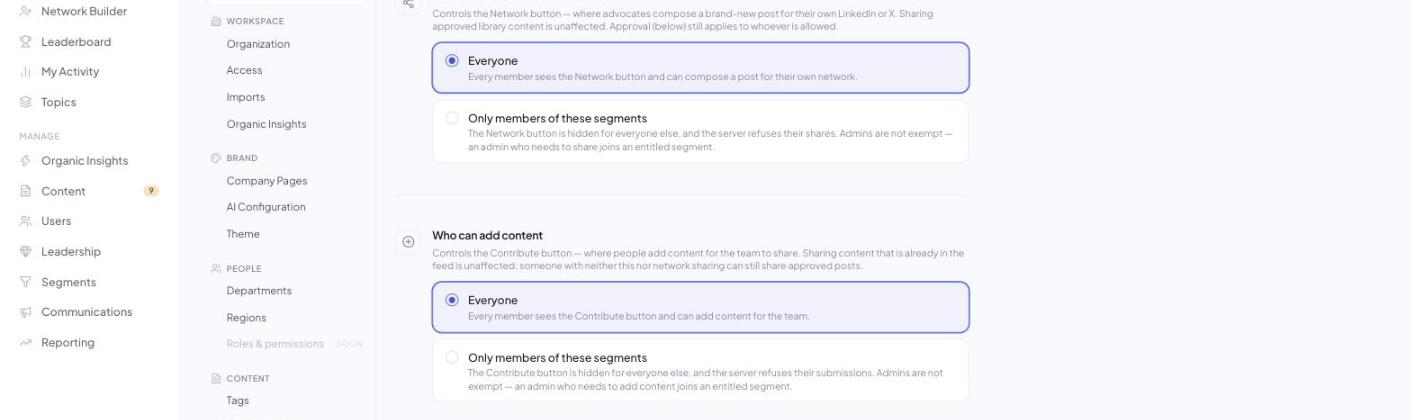
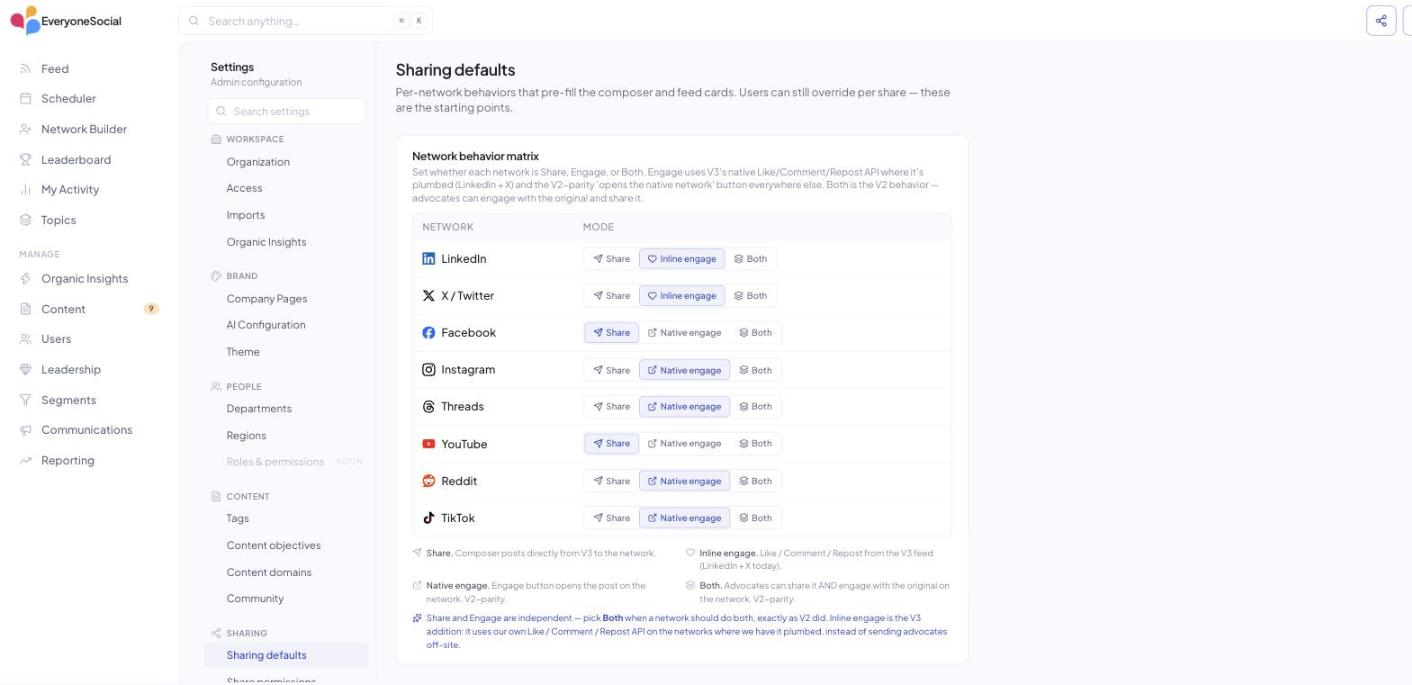
Sharing defaultsShare permissionsDisclosuresUTM tracking
0910 minutes
Enter your brand voice and objectives
v3 writes suggested share copy for your people. Your brand voice tells it how your company sounds; the advocacy goal tells it why your people share at all; an objective on a topic or collection tells it what a good share there is trying to do. Ten minutes here lifts the quality of every suggestion your people see.
- Open Settings › AI Configuration. In Brand Voice, describe your tone, the words you use and the words you avoid, then Save. If your brand team has a voice guide, paste its summary.
- In Advocacy goal, write the one outcome your program exists for (awareness, hiring, pipeline) and Save.
- Voice Personalization rewrites suggested copy in each person's own voice when they open the share dialog. Leave it on unless your policy says otherwise.
- Open Settings › Content objectives and create an objective for each major topic or collection: a name, a one-line objective statement, and a focus. Assign it from the Objective row on the topic or collection.
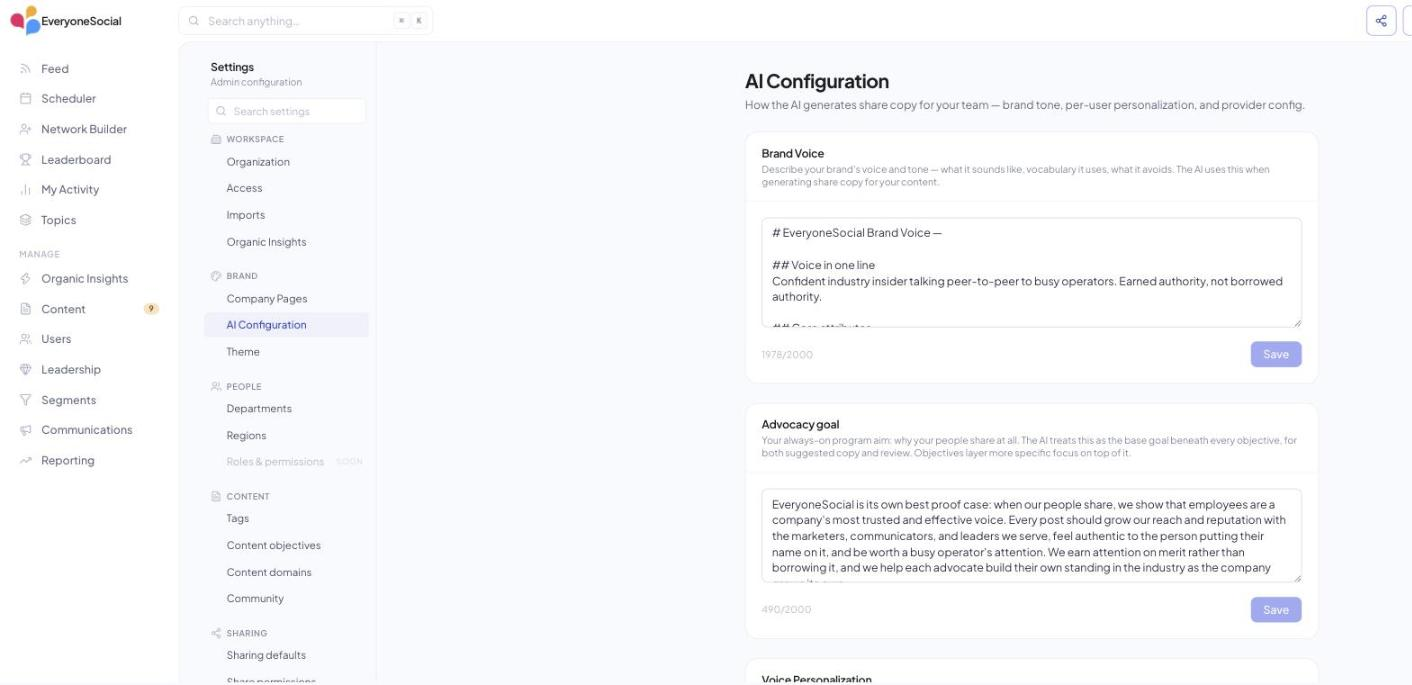
Brand voice and the advocacy goalContent objectives and AI review
102 minutes
Set your AI preferences
AI copy generation in v3 is yours to set at the workspace level: on or off, and which provider does the writing. If AI assistance is a question for your legal, comms or brand team, the switch is yours, and setting it now answers the question before anyone asks it.
- On the same AI Configuration page, scroll to the AI Configuration card. Enable AI copy generation turns suggested copy on or off for the whole workspace.
- Choose the Provider (Anthropic Claude or OpenAI GPT) and the Model. Companies with their own agreement can enter their own API key; leave it blank to use ours. Save settings.
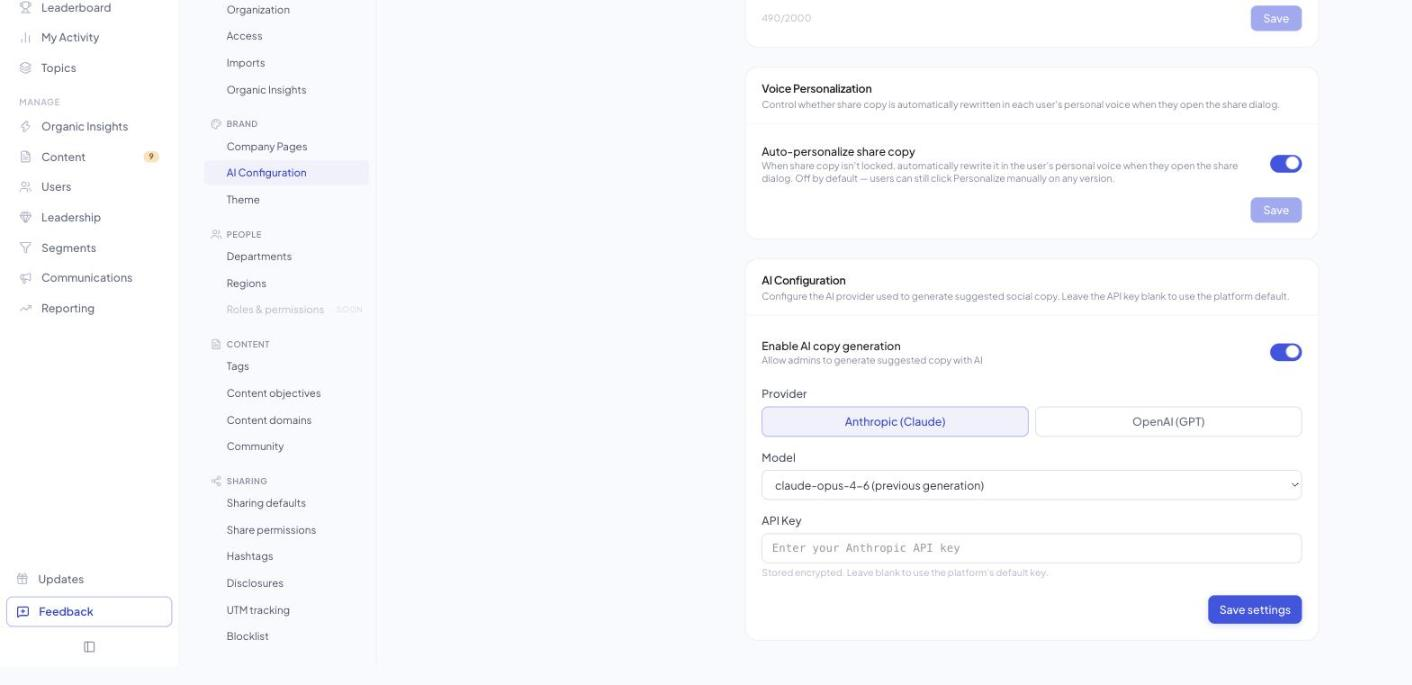
AI in EveryoneSocial v3: an overviewAI provider, models and bring your own key
115 minutes
Set up Leadership and scorecards
Leadership is where your executives' social performance is ranked and tracked, and a scorecard is one page on one person, delivered by email on a schedule. Add your leaders now and turn on scorecard delivery, and your leadership sees the program working from the first week.
- Open Leadership under Manage and choose Add Leadership. Add the people whose performance you want to track and set each one's tier (C-Suite, Management).
- Open Settings › Organization and find Scorecard delivery. Turn on Offer scorecard emails and pick the Send on day of the month.
- Each leader then chooses Monthly, Quarterly or Off under Your scorecard in their own settings. Tell them it is there; the announcement in step 12 has a line for it.
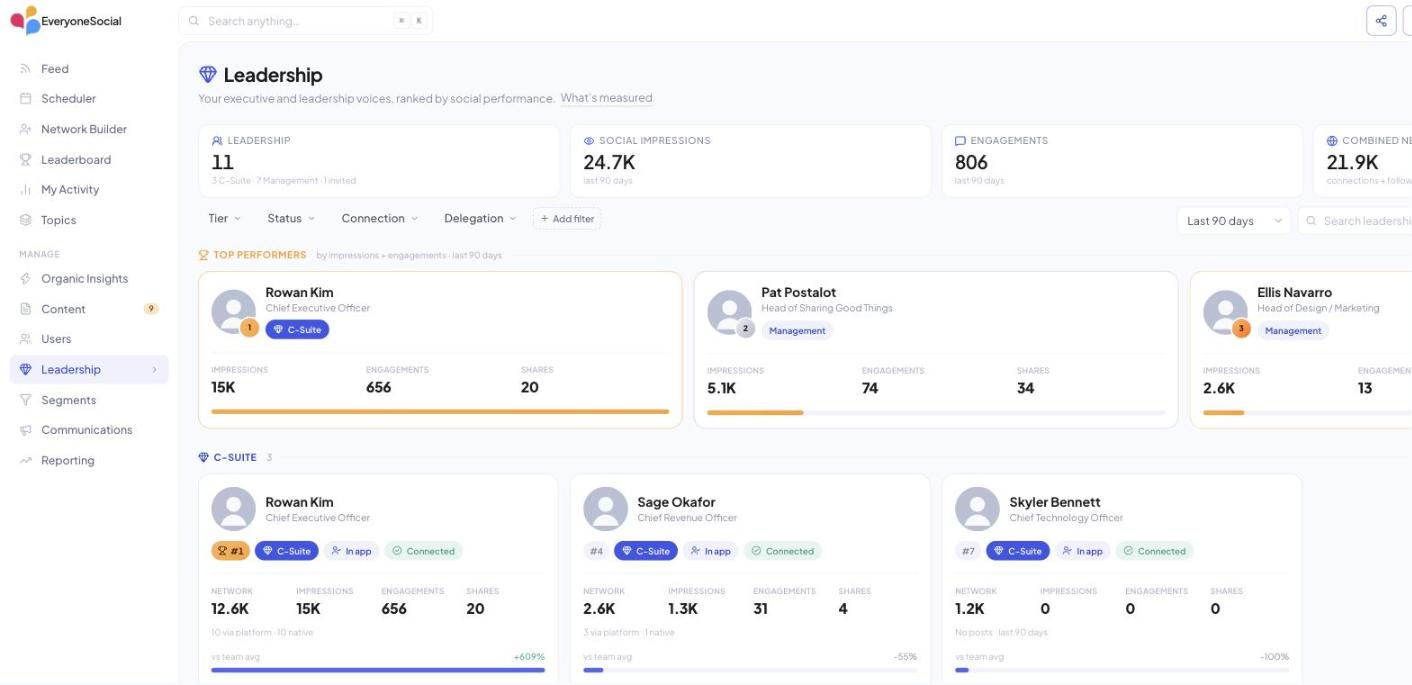
Leadership: running your executive programYour scorecard: one person's performance in one page
122 minutes
Tell your people on the day
On your scheduled update date the same address opens the new app. Your people go to the address they use today, sign in the way they always have, and they are in. Your job is one short note so they know what they are looking at. The note below is written for you; drop in your leaderboard lines from step 6 and send it from your own address the morning of your scheduled date.
EveryoneSocial got an update today. Same address, same program, rebuilt to be faster and a lot easier to share from. Go to the same address, sign in as usual, and you are in. Your LinkedIn is already connected, your topics are already there, and the suggested copy on every post is now written for you (edit it or use it as-is).
Three things to try this week: share one post from the feed, follow a topic you care about, and check the leaderboard. [Your season line: dates and prizes.] Leaders: your monthly scorecard is under Your scorecard in Settings.
On your phone, open the same address in your browser. Questions go to the Help icon in the app, or to me.
Timing
Send it the morning of your scheduled date, after we confirm the update is live. We tell you directly, the moment it is.
Getting started: your first week on EveryoneSocialQuestions people ask in week one
AThree things admins ask about
Also worth knowing
| What | Where and how |
|---|---|
| Claude and other AI assistants | Admins can connect Claude Desktop, Claude Code or another AI assistant to the workspace and ask it about the program. Settings › OAuth clients › New client: create a client, paste the values into the assistant, revoke it from the same page any time. Self-service sign-up is closed; every client is created deliberately, by an admin. |
| The phone | v3 runs in the phone's browser at your same address, full features. There is no v3 app in the stores yet; people who open the app-store version see a short notice pointing them to the browser. |
| Help center and videos | support.everyonesocial.com, written for v3. It opens already signed in from the Help icon inside your workspace. The Admin Guides collection there has one article per step in this guide, plus the IT page and this FAQ. |

BAnswered plainly
Questions admins ask before the update
When is our date?
It is scheduled. Every workspace has a scheduled update date, most in October. We tell you yours directly, ahead of time, and again the week before. There is nothing to request or arrange.
Do my people have to do anything before the update?
No. Their profile, role, department, location and share history are already in your v3 workspace. The one thing worth doing in advance is your announcement so they know the app will look new.
Do I have to invite anyone?
No. On your scheduled update date everyone signs in at the same address, the way they always have, and they are in.
Will LinkedIn still be connected?
Yes. Each person's connection comes across with them and is live the first time they sign in. Anyone whose connection had already expired connects once, in two clicks, during their first sign-in.
Does our address change?
No. Bookmarks, intranet links and your internal documentation keep working.
What happens to our groups?
Every group is a topic, with the same name, moderators and moderation setting. Step 3 shows where to confirm who each topic reaches.
Where are our program emails?
Communications › Campaigns. Step 5 walks through your first campaign so it is ready the week of your update.
What happens to leaderboard points?
A fresh season at v3 point values, on the boards and rules you already have. Set the duration and announce the season and its prizes.
Do shares my people have scheduled go out?
Anything scheduled in v3 runs from v3. Ask your active sharers to check their scheduler the week of your update.
Does Slack keep working?
One click. Add to Slack from Settings › Connected apps, step 7. Teams or Google Chat: tell us and we follow up on your channels directly.
What about our SSO, and do we need IT for anything else?
Forward IT one page. everyonesocial.com/v3-it-guide covers SSO, Slack approval, email allowlisting and directory sync, and it is the only IT document they need. Until IT finishes SSO, your people sign in with an email link, so a late setup never blocks access.
Can I keep making changes before my scheduled date?
Yes. Keep running your program. We refresh your v3 workspace from your live program within a day of your update, so your latest posts, people and settings are there on the day. Structure you build in v3 stays as you set it.
Who do I contact?
Reply to the email that brought you here, or write to support@everyonesocial.com. During your update week the same inbox is prioritised against the update schedule.
Two links to keep
Everything else is one page away.
For your IT team: everyonesocial.com/v3-it-guide. SSO, Slack approval, email allowlisting and directory sync on one page. Forward it once.
For you: the Admin Guides collection at support.everyonesocial.com, one article per step, open from the Help icon in your workspace.
Support: support@everyonesocial.com, or reply to your EveryoneSocial contact.